
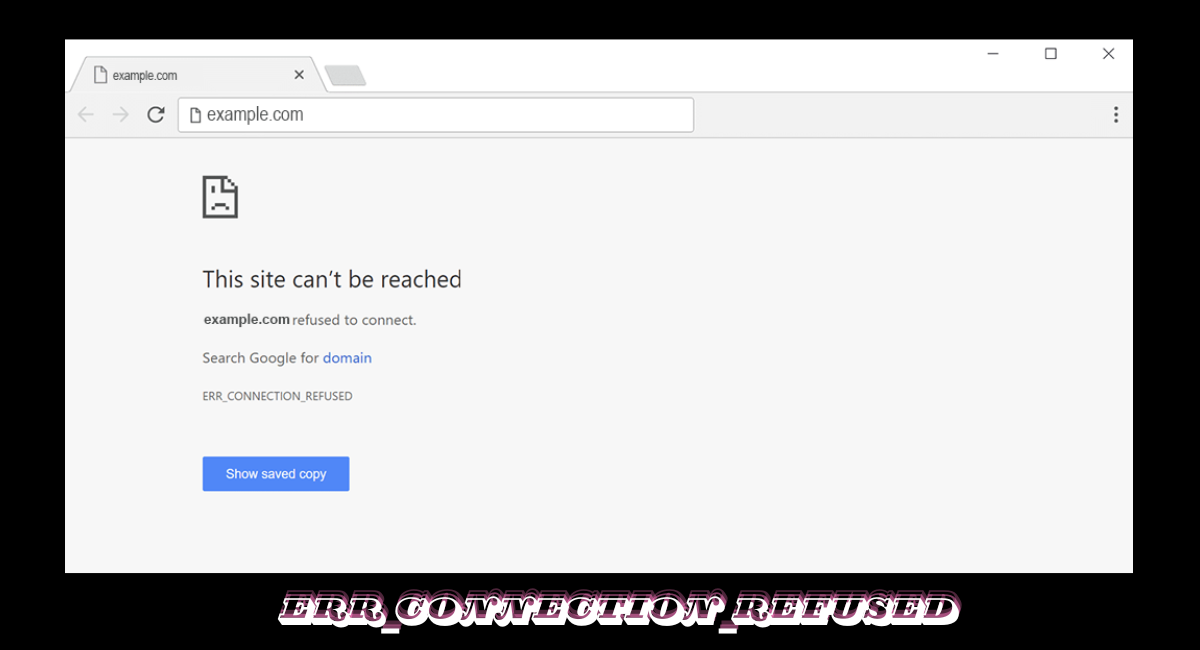
Getting the err_connection_refused error while browsing? This frustrating message stops you from accessing websites you need. Whether you’re seeing “net::err_connection_refused” in Chrome or “err connection refused” on Android, this guide walks you through every solution that actually works.
What Does ERR_CONNECTION_REFUSED Mean?
When you see this error, your browser is trying to connect to a website, but the connection gets blocked or rejected. Think of it like knocking on a door that won’t open—your request never reaches the website’s server.
This happens for several reasons: the website might be down, your firewall could be blocking access, or there might be issues with your network settings.
Quick Fixes That Work First
Before diving into technical solutions, try these simple steps that solve the problem 80% of the time:
Refresh and Retry
Press Ctrl+F5 (Windows) or Cmd+Shift+R (Mac) to do a hard refresh. This clears cached data that might be causing conflicts.
Check If the Website Is Actually Down
Visit downforeveryoneorjustme.com and enter the website URL. If it’s down for everyone, you’ll need to wait for the site owners to fix their server issues.
Restart Your Router
Unplug your router, wait 30 seconds, then plug it back in. This resets your connection and clears temporary network glitches.
Try a Different Browser
If err_connection_refused chrome keeps appearing, open the same website in Firefox, Edge, or Safari. This tells you whether the issue is browser-specific or network-wide.
Fixing ERR_CONNECTION_REFUSED in Chrome
Chrome users see this error more frequently than others. Here’s how to fix it:
Clear Browser Cache and Cookies
Corrupted cache files often trigger connection errors. Go to Chrome Settings > Privacy and Security > Clear Browsing Data. Select “Cached images and files” and “Cookies” for the past 24 hours, then click Clear Data.
Disable Chrome Extensions
Extensions sometimes interfere with connections. Open Incognito Mode (Ctrl+Shift+N) and visit the website. If it loads, an extension is causing problems. Disable them one by one to find the culprit.
Reset Chrome Settings
Type chrome://settings/reset in your address bar. Click “Restore settings to their original defaults” and confirm. This won’t delete bookmarks or passwords but removes problematic configurations.
Update Chrome to Latest Version
Outdated browsers have security restrictions that block connections. Go to chrome://settings/help and let Chrome update automatically.
Fixing ERR_CONNECTION_REFUSED on Android
Mobile users face this error on apps and browsers alike. Here’s your fix:
Clear App Cache
Go to Settings > Apps > Chrome (or your browser) > Storage > Clear Cache. Do NOT clear data unless you want to lose saved passwords.
Reset Network Settings
Navigate to Settings > System > Reset Options > Reset Wi-Fi, Mobile & Bluetooth. This clears corrupted network configurations without affecting your files.
Check Date and Time Settings
Wrong date/time causes SSL certificate errors that look like connection refusals. Go to Settings > System > Date & Time and enable “Use network-provided time.”
Disable VPN or Proxy
If you’re using a VPN, disconnect it temporarily. Many websites block VPN traffic, triggering err_connection_refused android errors.
Advanced Network Troubleshooting
When basic fixes don’t work, these network-level solutions usually resolve the issue:
Flush DNS Cache
Your computer stores website addresses in DNS cache. When this gets corrupted, connections fail.
Windows: Open Command Prompt as Administrator and type:
ipconfig /flushdns
ipconfig /renew
Mac: Open Terminal and enter:
sudo dscacheutil -flushcache
sudo killall -HUP mDNSResponder
Linux: Run this in terminal:
sudo systemd-resolve --flush-cachesChange DNS Servers
Your ISP’s DNS servers might be blocking connections. Switch to Google or Cloudflare DNS:
Windows:
- Open Control Panel > Network and Internet > Network Connections
- Right-click your connection and select Properties
- Select Internet Protocol Version 4 (TCP/IPv4) and click Properties
- Choose “Use the following DNS server addresses”
- Enter 8.8.8.8 (primary) and 8.8.4.4 (secondary)
Mac:
- Go to System Preferences > Network
- Select your connection and click Advanced
- Go to DNS tab and add 8.8.8.8 and 8.8.4.4
Disable IPv6
IPv6 conflicts cause connection problems on some networks. Temporarily disable it:
Windows: Control Panel > Network Connections > right-click your adapter > Properties > uncheck Internet Protocol Version 6
Mac: System Preferences > Network > Advanced > TCP/IP > Configure IPv6: Off
Check Hosts File
Malware sometimes modifies your hosts file to block websites.
Windows: Open C:\Windows\System32\drivers\etc\hosts in Notepad (as Administrator). Delete any suspicious entries that aren’t 127.0.0.1 localhost.
Mac/Linux: Open /etc/hosts with sudo privileges and remove unwanted entries.
Firewall and Antivirus Issues
Security software protects you but sometimes blocks legitimate connections:
Temporarily Disable Firewall
Windows: Go to Windows Security > Firewall & Network Protection > turn off all three firewalls temporarily. Try accessing the website. If it works, add the site to your firewall’s allowed list.
Mac: System Preferences > Security & Privacy > Firewall > Turn Off Firewall (temporarily).
Configure Antivirus Settings
Norton, McAfee, Avast, and other antivirus programs have web protection features. Open your antivirus dashboard and look for:
- Web Shield or Web Protection settings
- SSL Scanning (disable temporarily)
- Firewall rules (add exceptions)
Allow Specific Ports
Some websites use non-standard ports. Configure your firewall to allow:
- Port 80 (HTTP)
- Port 443 (HTTPS)
- Port 8080 (Alternative HTTP)
Server-Side Problems You Can’t Fix
Sometimes the error happens because of website issues:
Server Configuration Errors
The website’s server might have incorrect settings, firewall rules blocking traffic, or software conflicts. There’s nothing you can do except contact the website owner.
Port Not Listening
Web servers must “listen” on specific ports. If the server admin disabled the port or the web service crashed, connections will be refused.
IP Blocking
Some websites block entire IP ranges due to spam or abuse. If you share an IP address with someone who violated their terms, you might get blocked too.
ERR_CONNECTION_REFUSED on Localhost
Developers see this error when running local servers. Here’s how to fix it:
Verify Server Is Running
Check if your local server (Apache, Nginx, Node.js) is actually running. Use Task Manager (Windows) or Activity Monitor (Mac) to confirm.
Check Port Numbers
Make sure you’re using the correct port. If your server runs on port 3000, access it via localhost:3000, not just localhost.
Firewall Blocking Localhost
Even local connections can be blocked. Add exceptions for localhost and 127.0.0.1 in your firewall settings.
Use Correct Protocol
Access local servers with http://localhost, not https://localhost (unless you’ve configured SSL certificates).
Preventing Future Connection Errors
Keep these best practices in mind:
Keep Everything Updated: Browsers, operating systems, and network drivers need regular updates for security and compatibility.
Use Reliable DNS: Switch to Google DNS (8.8.8.8) or Cloudflare DNS (1.1.1.1) for better reliability.
Regular Cache Cleaning: Clear browser cache weekly to prevent corruption.
Monitor Browser Extensions: Only install extensions from trusted sources and remove ones you don’t use.
Maintain Good Security: Keep antivirus updated but configure it properly to avoid false positives.
When Nothing Works
If you’ve tried everything and still see net::err_connection_refused, consider these final options:
Contact Your ISP: They might have network issues or restrictions causing the problem.
Try Mobile Data: Switch from Wi-Fi to mobile data (or vice versa) to isolate whether it’s a network-specific issue.
Use a Different Device: Test on another computer or phone connected to the same network.
Wait It Out: If the website’s server is down or undergoing maintenance, patience is your only option.
Understanding Error Variations
You might see different versions of this error:
- net::err_connection_refused – Standard Chrome error message
- err_connection_refused localhost – Local development server issues
- err_connection_refused 127.0.0.1 – Specific to localhost IP address
- This site can’t be reached – User-friendly version in modern browsers
- Connection refused – Generic Unix/Linux error message
All these variations point to the same core issue: your browser cannot establish a connection with the target server.
Bottom Line
The ERR_CONNECTION_REFUSED error looks scary but usually has simple solutions. Start with quick fixes like clearing cache and restarting your router. If those don’t work, move to network troubleshooting with DNS changes and firewall adjustments. Most users solve the problem within 10 minutes using these methods.
Remember, if the website is down or blocking your IP, waiting and contacting site administrators becomes necessary. For persistent issues on multiple websites, contact your internet service provider for deeper network diagnostics.