
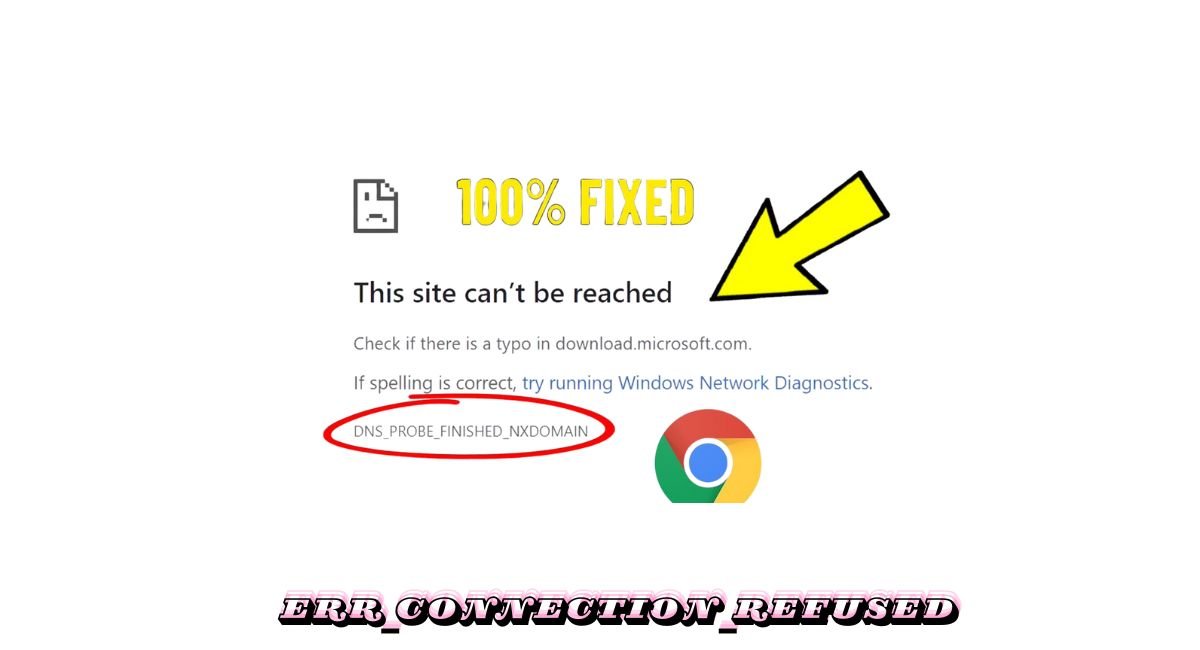
You’re trying to visit a website, and suddenly Chrome throws an error message at you: DNS_PROBE_FINISHED_NXDOMAIN. Frustrating, right?
This error stops you from accessing websites, but here’s the good news—it’s fixable. This guide walks you through everything you need to know about this DNS error and how to resolve it quickly.
What Does DNS_PROBE_FINISHED_NXDOMAIN Mean?
Let’s break dns_probe_finished_nxdomain down in simple terms.
When you type a website address (like google.com) into your browser, your computer needs to find that website’s IP address. Think of it like looking up a phone number in a contact list. Your computer uses something called DNS (Domain Name System) to do this lookup.
DNS_PROBE_FINISHED_NXDOMAIN means your browser completed the DNS lookup, but the domain name doesn’t exist or can’t be found. The “NXDOMAIN” part stands for “Non-Existent Domain.”
In everyday language: your browser is saying, “I searched everywhere, but this website address doesn’t exist or I can’t find it.”
Why Does This Error Happen?
Several reasons can trigger this DNS error:
Your DNS settings are misconfigured. Sometimes your computer is asking the wrong “directory” for website addresses.
The website’s domain actually expired or doesn’t exist. If someone didn’t renew their domain name, it stops working.
Your internet connection has issues. Network problems can prevent DNS lookups from working properly.
Your browser has corrupted cache. Old, stored data in Chrome can cause conflicts.
Antivirus or firewall is blocking the connection. Security software sometimes blocks DNS requests by mistake.
Router problems. Your router might need a refresh or has incorrect DNS settings.
How to Fix DNS_PROBE_FINISHED_NXDOMAIN Error
Let’s get your internet working again. Try these solutions in order—most people fix the problem within the first few steps.
Solution 1: Check the Website Address
Before diving into technical fixes, double-check the URL you typed. Sounds basic, but typos happen.
Make sure there are no extra spaces, misspellings, or wrong characters. Try visiting another website to confirm your internet works generally.
Solution 2: Restart Your Router and Computer
This simple step fixes many network issues.
Unplug your router from power, wait 30 seconds, then plug it back in. While the router restarts, restart your computer too. This clears temporary network glitches and gives you a fresh connection.
Solution 3: Clear Chrome’s Browser Cache and Cookies
Corrupted browser data often causes DNS errors.
Open Chrome and click the three dots in the top-right corner. Go to “More tools” then “Clear browsing data.” Select “All time” for the time range. Check “Cookies and other site data” and “Cached images and files.” Click “Clear data.”
Now try visiting the website again.
Solution 4: Flush Your DNS Cache
Your computer stores DNS information temporarily. Clearing this cache can resolve the error.
For Windows: Press Windows key + R, type cmd, and press Enter. In the command prompt, type ipconfig /flushdns and hit Enter. You’ll see a confirmation message.
For Mac: Open Terminal from Applications. Type sudo dscacheutil -flushcache; sudo killall -HUP mDNSResponder and press Enter. Enter your password when prompted.
For Linux: Open Terminal and type sudo systemd-resolve --flush-caches then press Enter.
Solution 5: Change Your DNS Server
Your default DNS server might be slow or not working properly. Switching to a public DNS server often solves this.
Google Public DNS (8.8.8.8 and 8.8.4.4) and Cloudflare DNS (1.1.1.1 and 1.0.0.1) are reliable alternatives.
For Windows: Open Control Panel and go to “Network and Internet.” Click “Network and Sharing Center” then “Change adapter settings.” Right-click your connection and select “Properties.” Select “Internet Protocol Version 4” and click “Properties.” Choose “Use the following DNS server addresses.” Enter 8.8.8.8 for Preferred DNS and 8.8.4.4 for Alternate DNS. Click OK.
For Mac: Go to System Preferences and click “Network.” Select your connection and click “Advanced.” Go to the DNS tab. Click the “+” button and add 8.8.8.8, then add 8.8.4.4. Click OK and Apply.
Solution 6: Renew Your IP Address
Releasing and renewing your IP address can fix DNS problems.
For Windows: Open Command Prompt as administrator. Type ipconfig /release and press Enter. Then type ipconfig /renew and press Enter.
For Mac: Go to System Preferences, then Network. Select your connection and click “Advanced.” Go to the TCP/IP tab and click “Renew DHCP Lease.”
Solution 7: Disable VPN or Proxy
VPNs and proxy servers can interfere with DNS lookups.
Temporarily disable any VPN or proxy you’re using. Check if the website loads without them. If it does, your VPN or proxy settings need adjustment.
Solution 8: Temporarily Disable Antivirus and Firewall
Security software sometimes blocks legitimate DNS requests.
Temporarily disable your antivirus and Windows Firewall (or Mac firewall). Try accessing the website. If it works, add an exception for your browser in the security software settings. Remember to turn your security software back on afterward.
Solution 9: Reset Chrome Flags
Chrome’s experimental features can sometimes cause issues.
Type chrome://flags in your address bar. Click “Reset all” at the top. Restart Chrome.
Solution 10: Update Network Drivers (Windows)
Outdated network drivers can cause connectivity problems.
Press Windows key + X and select “Device Manager.” Expand “Network adapters.” Right-click your network adapter and select “Update driver.” Choose “Search automatically for updated driver software.”
Solution 11: Check Your Hosts File
Your computer’s hosts file might be blocking the website.
For Windows: Navigate to C:\Windows\System32\drivers\etc\. Open the “hosts” file with Notepad (run as administrator). Look for any entries pointing to the website you’re trying to visit. Delete any suspicious entries (but be careful not to remove system entries).
For Mac: Open Terminal and type sudo nano /etc/hosts. Check for entries related to your website and remove them if found.
Solution 12: Reset Network Settings
If nothing else works, reset your entire network configuration.
For Windows: Open Settings and go to “Network & Internet.” Scroll down and click “Network reset.” Click “Reset now” and confirm.
For Mac: Delete network preferences by going to System Preferences, then Network. Remove all connections, restart your Mac, then add them back.
Preventing DNS_PROBE_FINISHED_NXDOMAIN Errors
Once you’ve fixed the error, take these steps to prevent it from happening again:
Use reliable DNS servers. Stick with Google DNS or Cloudflare DNS instead of your ISP’s default servers.
Keep your browser updated. Chrome updates include fixes for network-related bugs.
Maintain your router. Restart it weekly and keep its firmware updated.
Be careful with browser extensions. Some extensions interfere with network requests.
Regularly clear browser cache. Don’t let old data pile up for months.
When to Contact Your Internet Service Provider
If you’ve tried everything and still see DNS_PROBE_FINISHED_NXDOMAIN, the problem might be with your ISP.
Contact your internet provider if other devices on your network have the same problem, multiple websites show the error, or the issue persists after trying all solutions above.
Your ISP can check for DNS server problems on their end or issues with your internet connection.
DNS_PROBE_FINISHED_NXDOMAIN vs Other DNS Errors
You might encounter similar DNS errors. Here’s how they differ:
DNS_PROBE_FINISHED_NXDOMAIN means the domain doesn’t exist or can’t be found.
DNS_PROBE_FINISHED_NO_INTERNET means you have no internet connection at all.
DNS_PROBE_FINISHED_BAD_CONFIG indicates incorrect DNS configuration on your device.
ERR_NAME_NOT_RESOLVED is Chrome’s way of saying it can’t find the website’s IP address—similar to NXDOMAIN but less specific.
Does This Error Affect Mobile Devices?
Yes, mobile phones and tablets can experience similar DNS issues, though they usually display different error messages.
On Android, you might see “Web page not available” or “DNS error.” On iPhone, you’ll see “Safari cannot open the page” or “Server not found.”
The fixes are similar: restart your device, forget and reconnect to WiFi, or change DNS settings in your WiFi connection properties.
The Bottom Line
DNS_PROBE_FINISHED_NXDOMAIN looks scary, but it’s usually simple to fix. Start with the basic solutions like restarting your router and clearing cache—these solve most cases. If those don’t work, changing your DNS server to Google’s or Cloudflare’s public DNS almost always does the trick.
Remember, this error doesn’t mean your computer is broken. It’s just a communication problem between your browser and the website you’re trying to reach. With the solutions in this guide, you’ll be back online in minutes.